
As you probably know I am developing a series posts called- Pragmatic Automation with WebDriver. They consist of tons of practical information how to start writing automation tests with WebDriver. Also, contain a lot of more advanced topics such as automation strategies, benchmarks and researches. In the next couple of publications, I am going to share with you some Advanced WebDriver usages in tests. Without further ado, here are the today’s advanced WebDriver Automation tips and trips.
1. Drag and Drop
You can use the special Actions WebDriver’s class to perform complex UI interactions. Through its method DragAndDropToOffset, you can drag and drop. You only need to set the desired X and Y offsets.
public void DragAndDrop()
{
    this.driver.Navigate().GoToUrl(@"http://loopj.com/jquery-simple-slider/");
    IWebElement element = driver.FindElement(By.XPath("//*[@id='project']/p[1]/div/div[2]"));
    Actions move = new Actions(driver);
    move.DragAndDropToOffset(element, 30, 0).Perform();
}
2. Upload a File
It is a straightforward task to upload a file using WebDriver. You need to locate the file element and use the IWebElement’s SendKeys method to set the path to your file.
public void FileUpload()
{
    this.driver.Navigate().GoToUrl(
    @"https://demos.telerik.com/aspnet-ajax/ajaxpanel/application-scenarios/file-upload/defaultcs.aspx");
    IWebElement element =
    driver.FindElement(By.Id("ctl00_ContentPlaceholder1_RadUpload1file0"));
    String filePath =
    @"D:ProjectsPatternsInAutomation.TestsWebDriver.Series.TestsbinDebugWebDriver.xml";
    element.SendKeys(filePath);
}
3. Handle JavaScript Pop-ups
Through the ITargetLocator interface of the IWebDriver, you can locate the JavaScript alert. Then you can use the Accept and Dismiss methods of the IAlert interface.
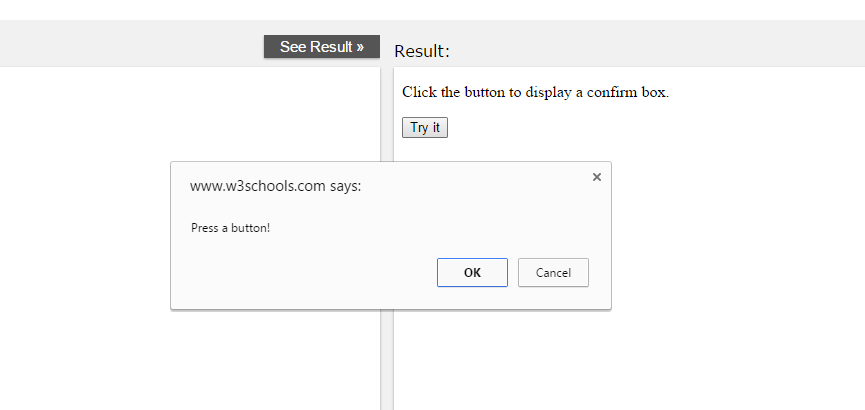
public void JavaScripPopUps()
{
    this.driver.Navigate().GoToUrl(
    @"http://www.w3schools.com/js/tryit.asp?filename=tryjs_confirm");
    this.driver.SwitchTo().Frame("iframeResult");
    IWebElement button = driver.FindElement(By.XPath("/html/body/button"));
    button.Click();
    IAlert a = driver.SwitchTo().Alert();
    if (a.Text.Equals("Press a button!"))
    {
        a.Accept();
    }
    else
    {
        a.Dismiss();
    }
}
While ago when we were working on the first version of the BELLATRIX test automation framework, I did this research and afterward we used many of the tricks in lots of the features of our solution.
4. Switch Between Browser Windows or Tabs
WebDriver drives the browser within a scope of one browser window. However, we can use its SwitchTo method to change the target window or tab.
public void MovingBetweenTabs()
{
    this.driver.Navigate().GoToUrl(@"http://automatetheplanet.com/compelling-sunday-14022016/");
    driver.FindElement(By.LinkText("10 Advanced WebDriver Tips and Tricks Part 1")).Click();
    driver.FindElement(By.LinkText("The Ultimate Guide To Unit Testing in ASP.NET MVC")).Click();
    ReadOnlyCollection<String> windowHandles = driver.WindowHandles;
    String firstTab = windowHandles.First();
    String lastTab = windowHandles.Last();
    driver.SwitchTo().Window(lastTab);
    Assert.AreEqual<string>("The Ultimate Guide To Unit Testing in ASP.NET MVC", driver.Title);
    driver.SwitchTo().Window(firstTab);
    Assert.AreEqual<string>("Compelling Sunday – 19 Posts on Programming and Quality Assurance", driver.Title);
}
The WindowHandles property returns all open browser windows. You can pass the name of the desired tab/window to the Window method of the ITargetLocator interface (returned by the SwitchTo method) to change the current target.

5. Navigation History
WebDriver’s INavigation interface contains handy methods for going forward and backward. Also, you can refresh the current page.
public void NavigationHistory()
{
    this.driver.Navigate().GoToUrl(
    @"http://www.codeproject.com/Articles/1078541/Advanced-WebDriver-Tips-and-Tricks-Part");
    this.driver.Navigate().GoToUrl(
    @"http://www.codeproject.com/Articles/1017816/Speed-up-Selenium-Tests-through-RAM-Facts-and-Myth");
    driver.Navigate().Back();
    Assert.AreEqual<string>(
    "10 Advanced WebDriver Tips and Tricks - Part 1 - CodeProject",
    driver.Title);
    driver.Navigate().Refresh();
    Assert.AreEqual<string>(
    "10 Advanced WebDriver Tips and Tricks - Part 1 - CodeProject",
    driver.Title);
    driver.Navigate().Forward();
    Assert.AreEqual<string>(
    "Speed up Selenium Tests through RAM Facts and Myths - CodeProject",
    driver.Title);
}
6. Change User Agent
In my previous post from the series, I showed you how to create a new custom Firefox profile. You can set its argument ‘general.useragent.override’ to the desired user agent string.
FirefoxProfileManager profileManager = new FirefoxProfileManager();
FirefoxProfile profile = new FirefoxProfile();
profile.SetPreference(
"general.useragent.override",
"Mozilla/5.0 (BlackBerry; U; BlackBerry 9900; en) AppleWebKit/534.11+ (KHTML, like Gecko) Version/7.1.0.346 Mobile Safari/534.11+");
this.driver = new FirefoxDriver(profile);
7. Set HTTP Proxy for Browser
Similar to the user agent configuration, to set a proxy for Firefox, you only need to set a few arguments of the Firefox’ profile.
FirefoxProfile firefoxProfile = new FirefoxProfile();
firefoxProfile.SetPreference("network.proxy.type", 1);
firefoxProfile.SetPreference("network.proxy.http", "myproxy.com");
firefoxProfile.SetPreference("network.proxy.http_port", 3239);
driver = new FirefoxDriver(firefoxProfile);
8. Handle SSL Certificate Error
8.1. Handle SSL Certificate Error FirefoxDriver
FirefoxProfile firefoxProfile = new FirefoxProfile();
firefoxProfile.AcceptUntrustedCertificates = true;
firefoxProfile.AssumeUntrustedCertificateIssuer = false;
driver = new FirefoxDriver(firefoxProfile);
8.2. Handle SSL Certificate Error ChromeDriver
You can use the special SetEnvironmentVariable method to create an environment variable in Windows pointing the path to your driver’s executable. This way you do not need to specify the path to it every time you initialize the driver’s instances.
DesiredCapabilities capability = DesiredCapabilities.Chrome();
Environment.SetEnvironmentVariable("webdriver.chrome.driver", "C:PathToChromeDriver.exe");
capability.SetCapability(CapabilityType.AcceptSslCertificates, true);
driver = new RemoteWebDriver(capability);
8.3. Handle SSL Certificate Error InternetExplorerDriver
DesiredCapabilities capability = DesiredCapabilities.InternetExplorer();
Environment.SetEnvironmentVariable("webdriver.ie.driver", "C:PathToIEDriver.exe");
capability.SetCapability(CapabilityType.AcceptSslCertificates, true);
driver = new RemoteWebDriver(capability);
9. Scroll Focus to Control
There isn’t a built-in mechanism in WebDriver to scroll focus to a control. However, you can use the JavaScript’s method window.scroll. You only need to pass the Y location of the desired element.
public void ScrollFocusToControl()
{
    this.driver.Navigate().GoToUrl(@"http://automatetheplanet.com/compelling-sunday-14022016/");
    IWebElement link = driver.FindElement(By.PartialLinkText("Previous post"));
    string jsToBeExecuted = string.Format("window.scroll(0, {0});", link.Location.Y);
    ((IJavaScriptExecutor)driver).ExecuteScript(jsToBeExecuted);
    link.Click();
    Assert.AreEqual<string>("10 Advanced WebDriver Tips and Tricks - Part 1", driver.Title);
}
10. Focus on a Control
There are two ways to do the job. The first one is to use the IWebElement’s SendKeys method with empty string. The second is to use a little bit of JavaScript code.
public void FocusOnControl()
{
    this.driver.Navigate().GoToUrl(
    @"http://automatetheplanet.com/compelling-sunday-14022016/");
    IWebElement link = driver.FindElement(By.PartialLinkText("Previous post"));
    // 9.1. Option 1.
    link.SendKeys(string.Empty);
    // 9.1. Option 2.
    ((IJavaScriptExecutor)driver).ExecuteScript("arguments[0].focus();", link);
}