
This is the first article from a new series of posts called- High-Quality Automated Tests. I firmly believe that all coded tests should be treated with respect (since they are production code). So, when we write automated tests, we need to follow the high-quality code conventions and best practices. These will be the topics in the new series. Lucky for us there are tons of tools that can help us. As you know, I mainly use C# for my tests so the first publication will be about applying coding standards in .NET using EditorConfig.
Definition
Coding standards define a programming style. A coding standard does not usually concern itself with wrong or right in a more abstract sense. It is merely a set of rules and guidelines for the formatting of source code.
About EditorConfig
EditorConfig helps developers define and maintain consistent coding styles between different editors and IDEs. The EditorConfig project consists of a file format for defining coding styles and a collection of text editor plugins that enable editors to read the file format and adhere to defined styles. EditorConfig files are easily readable and they work nicely with version control systems.
It is integrated into Visual Studio 2017 and higher. New C# features options code analysis use it internally. If you open C# Code Style settings, you can configure it.
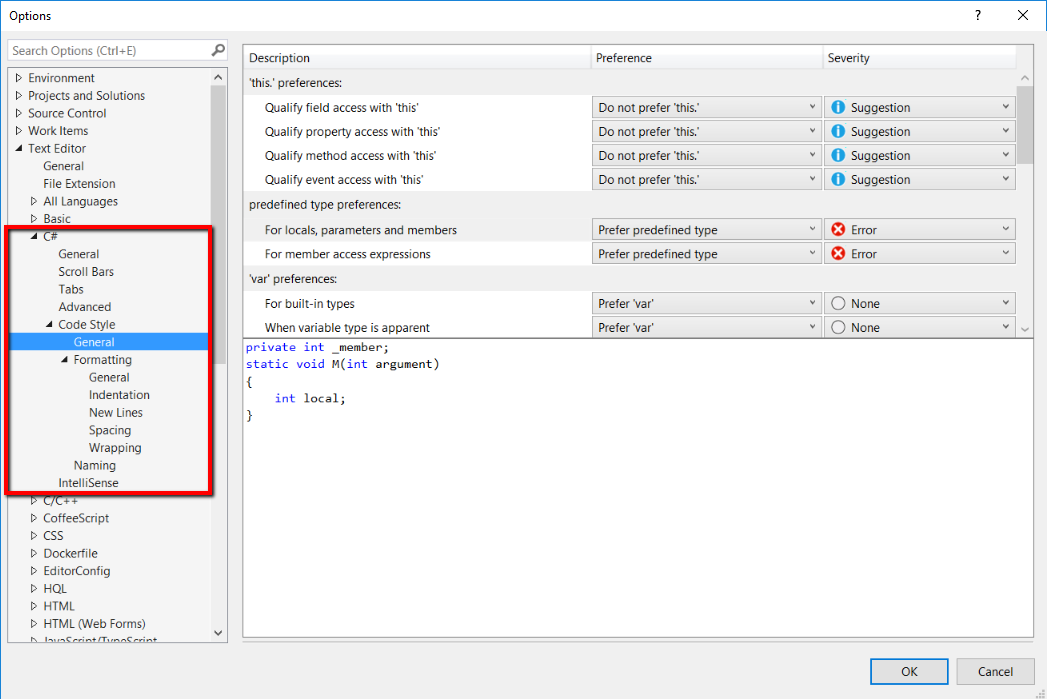
You can override the global settings through a .editorconfig file placed on solution level.
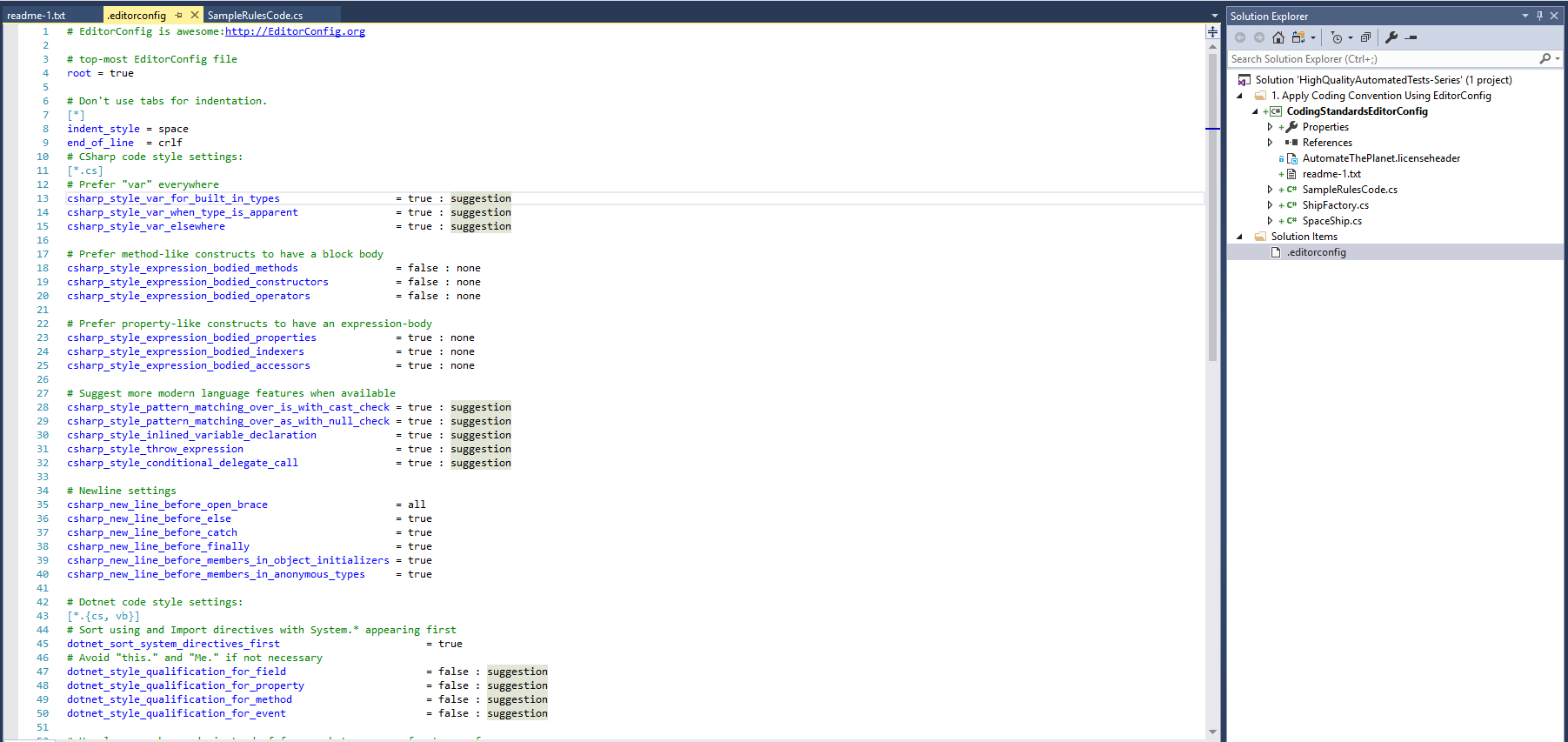
There is a plug-in called “EditorConfig” for Visual Studio which eases the job of creating/configuring the .editorconfig file.
While ago when we were working on the first version of the BELLATRIX test automation framework, I did this research while I was working on a similar feature for our solution.
Sample .editorconfig
The file below contains all rules that you need for C# and .NET. Create the file in your solution and copy the content.
# top-most EditorConfig file
root = true
# Don't use tabs for indentation.
[*]
indent_style = space
end_of_line = crlf
# CSharp code style settings:
[*.cs]
# Prefer "var" everywhere
csharp_style_var_for_built_in_types = true : suggestion
csharp_style_var_when_type_is_apparent = true : suggestion
csharp_style_var_elsewhere = true : suggestion
# Prefer method-like constructs to have a block body
csharp_style_expression_bodied_methods = false : none
csharp_style_expression_bodied_constructors = false : none
csharp_style_expression_bodied_operators = false : none
# Prefer property-like constructs to have an expression-body
csharp_style_expression_bodied_properties = true : none
csharp_style_expression_bodied_indexers = true : none
csharp_style_expression_bodied_accessors = true : none
# Suggest more modern language features when available
csharp_style_pattern_matching_over_is_with_cast_check = true : suggestion
csharp_style_pattern_matching_over_as_with_null_check = true : suggestion
csharp_style_inlined_variable_declaration = true : suggestion
csharp_style_throw_expression = true : suggestion
csharp_style_conditional_delegate_call = true : suggestion
# Newline settings
csharp_new_line_before_open_brace = all
csharp_new_line_before_else = true
csharp_new_line_before_catch = true
csharp_new_line_before_finally = true
csharp_new_line_before_members_in_object_initializers = true
csharp_new_line_before_members_in_anonymous_types = true
# Dotnet code style settings:
[*.{cs, vb}]
# Sort using and Import directives with System.* appearing first
dotnet_sort_system_directives_first = true
# Avoid "this." and "Me." if not necessary
dotnet_style_qualification_for_field = false : suggestion
dotnet_style_qualification_for_property = false : suggestion
dotnet_style_qualification_for_method = false : suggestion
dotnet_style_qualification_for_event = false : suggestion
# Use language keywords instead of framework type names for type references
dotnet_style_predefined_type_for_locals_parameters_members = true : suggestion
dotnet_style_predefined_type_for_member_access = true : suggestion
# Suggest more modern language features when available
dotnet_style_object_initializer = true : suggestion
dotnet_style_collection_initializer = true : suggestion
dotnet_style_coalesce_expression = true : suggestion
dotnet_style_null_propagation = true : suggestion
dotnet_style_explicit_tuple_names = true : suggestion
EditorConfig Warnings
EditorConfig was built to produce warnings and “warn” you when there is a problem with your code so that you can fix it fast.
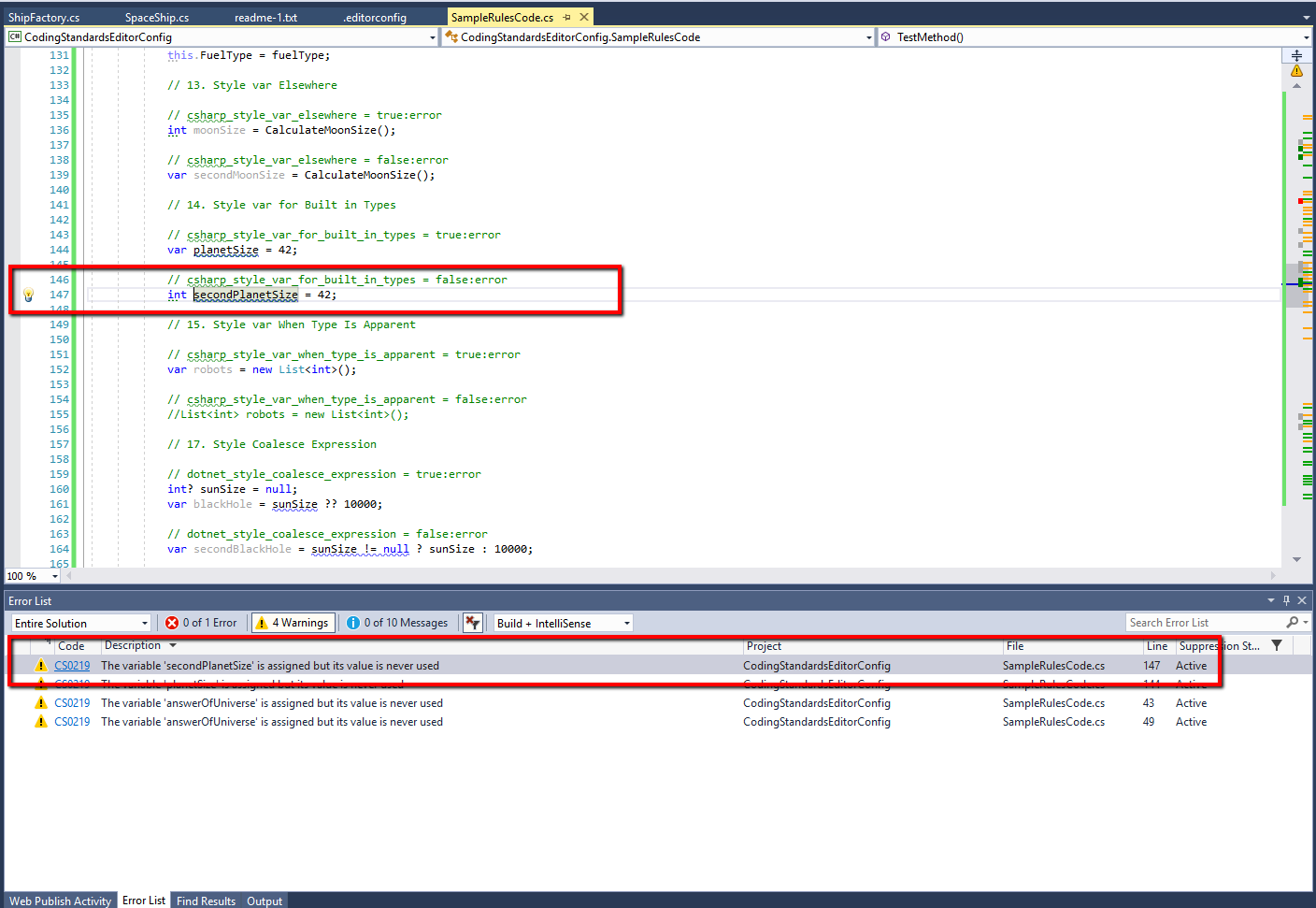
You can view all warnings in the Error List window. Once you double-click on a warning, the file where the issue is situated is opened and selected.
Treat All Warnings as Errors
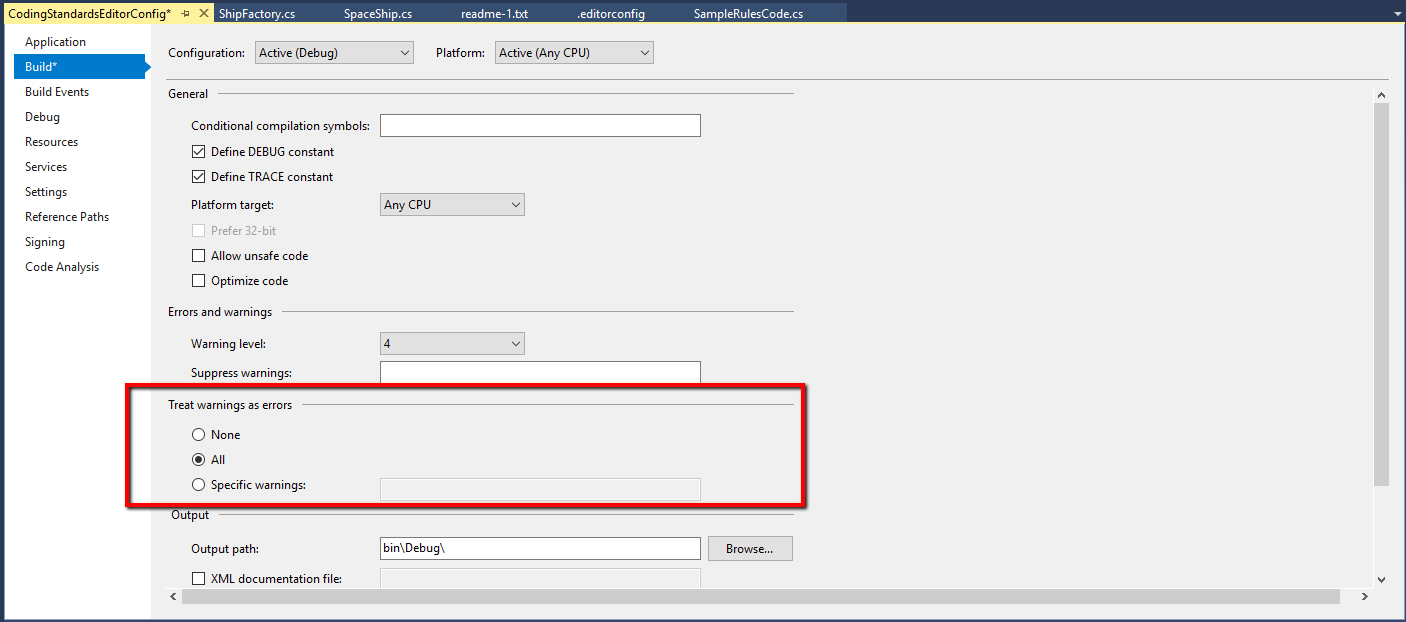
Also, usually you want to make sure that all people follow the coding standards and fix all related problems. One of the options that you have is to change the properties of your projects to treat all warnings as errors.
In the next articles from the series, I will show you my favorite EditorConfig rules which you should enable for your automated tests.